
The Attachments Page within the support system allows users to manage files related to a specific service request, such as screenshots and diagnostic images. Attachments help support teams better understand issues and reproduce problems more accurately.
🎯 Purpose of attachments
The Attachments Page is used to:
Provide visual evidence of errors or unexpected behavior
Upload screenshots or photos
Improve communication between users and support staff
- Allow reviewers to quickly assess the context of the issue
Attachments form a key part of the troubleshooting and documentation workflow within the support system.
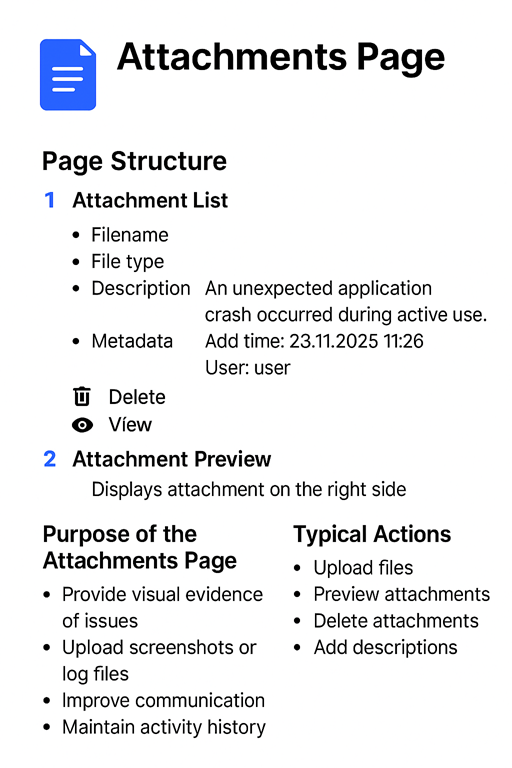
1. Attachment List (Left Panel)
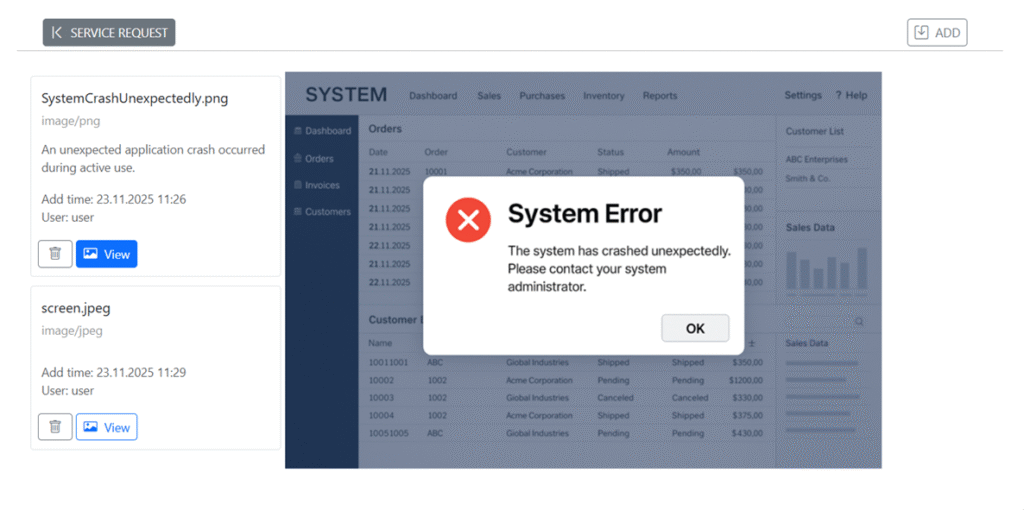
Each attachment is displayed as a card containing:
✔ Filename
Examples:
SystemCrashUnexpectedly.png
screen.jpeg
✔ File type
Shown beneath the name (e.g., image/png, image/jpeg).
✔ Description
A short user-provided explanation that describes the purpose of the attachment.
Example:
An unexpected application crash occurred during active use.
✔ Metadata
Each file displays:
Add time — when the file was uploaded
User — who added it
Example:
Add time: 23.11.2025 11:26
User: user
✔ Actions
Each attachment provides two buttons:
🗑 Delete — remove the file
🔍 View — preview file on the right side
These controls help maintain clean and accurate documentation for each support request.
2. Attachment Preview (Right Panel)
When clicking View, the selected attachment is shown on the right side.
In the screenshot, the preview displays a System Error dialog:
System Error
The system has crashed unexpectedly.
Please contact your system administrator.
This area allows support staff to inspect the attachment without downloading it, ensuring quick access to critical diagnostic information.
🛠️ Typical user actions
On this page, a user can:
Upload a new file using the ADD button
Preview files in the right panel
Delete incorrect or outdated attachments
Add meaningful descriptions for context
Verify that the correct evidence has been attached before submitting the request
⭐ Best practices for using attachments
Provide clear, readable screenshots
Add short descriptions explaining what each file shows
Avoid uploading duplicates or unrelated files
Ensure timestamps on files are meaningful
Remove outdated attachments when updating a ticket