
Documentation for the support system
This page is dedicated to the user documentation of the system and serves as a central knowledge base for platform users. It provides detailed descriptions of available features, step-by-step instructions, and practical guidance to support day-to-day work with the tool.
The documentation is designed for business users, analysts, and consultants, helping them understand how the system works and how to use it effectively in process design and analysis.
The materials cover both basic usage scenarios and more advanced functionalities, allowing users to gradually deepen their knowledge. The documentation evolves alongside the system and supports operational, project, and implementation activities.
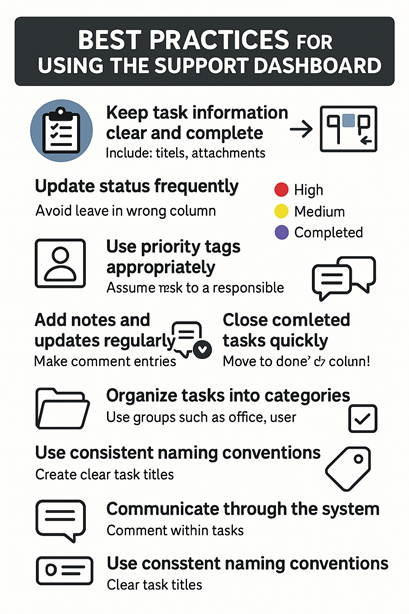
Best practices for using the system
A task card should always contain enough information for another team member to understand it without asking follow-up questions.
What to include:
-
A short, clear title describing the issue
-
Precise details in the task body
-
Screenshots or error logs (if relevant)
-
Contact info or source of the report (optional)
Why it matters:
Consistent descriptions reduce confusion and speed up resolution.
Workflow columns represent real progress.
Tasks should never stay in the wrong column—this breaks the overview for the whole team.
Good practice:
-
After starting work → move to In Progress
-
When requesting review → move to In Review
-
When finished → move to Done
Why it matters:
Keeping statuses accurate ensures the board reflects the team’s actual workload.
Each color indicates a different urgency level:
-
🔴 Critical – urgent, immediate attention
-
🟣 High – urgent, immediate attention
-
🟢 Normal – important but not urgent
-
🟡 Low – currently able to expect
Do not overuse the highest priority.
Use it only when the issue genuinely requires rapid action.
Every task must have an owner.
Tasks without an assigned user are likely to be forgotten or delayed.
Best practice:
-
Assign tasks immediately after creation
-
Reassign if ownership changes
-
Use initials or avatar indicators for clarity
Use comments or notes inside tasks to document:
-
What actions were taken
-
What remains to be done
-
Any blockers or waiting conditions
-
Feedback from the user or team
Why it matters:
Good documentation ensures continuity even if tasks change hands.
A stage like In Progress should not become a parking lot.
If too many tasks pile up, the flow slows down.
Good practice:
-
Limit active tasks
-
Push items to next stages as soon as possible
-
Keep the board flowing
Once a task is verified or approved, move it to Done without delay.
This helps keep the board clean and highlights what still needs attention.
Use groups such as office, user, or others defined by your system.
Why:
-
Helps with filtering
-
Improves clarity
-
Makes reporting easier
Examples:
-
“Error on login screen – user cannot authenticate”
-
“Integration request – new API endpoint”
-
“Office task – update printer configuration”
Consistency improves readability and searching.
Encourage team members to use task comments instead of external chat messages.
This keeps the entire task history in one place.