
AI-Assisted Analysis
The AI Assistant is part of the Support System used for analyzing operational issues. It allows support agents to select existing tickets, send their context to the AI engine, and receive an automatically generated MindMap representing the root causes, actions, and recommendations extracted from the selected ticket data. The mindmap is generated based on ticket data and helps provide a structured view of a task to by solved —especially useful during troubleshooting, RCA (Root Cause Analysis) or problem investigations. This guide helps new users quickly learn how to select tickets, send them to AI, and view a generated mind map.
Purpose of the Solution:
Improve investigation and analysis efficiency
Visualize complex issues through an AI-generated mind map
Support faster decision-making by identifying root causes and recommended actions
Provide a consistent format for documenting recurring system problems
Help cross-team communication (support, development, warehouse ops, etc.)
User UI
1. Action Buttons
SAVE DATA
Stores the current mindmap with metadata (ticket IDs, analysis time, AI version, etc.).
PROPERTIES
Opens a panel showing:
map layout template settings
CLEAR MAP
Removes the current mindmap from the canvas and resets the UI.
ASSISTANT AI
Triggers the AI request using selected tickets.
2. Ticket Selection Panel
Users can browse available tickets related to operational or integration issues. Selected tickets serve as input data for the AI request.
Multi-selection supported
Used as the context for the AI query
Only selected tickets participate in the analysis
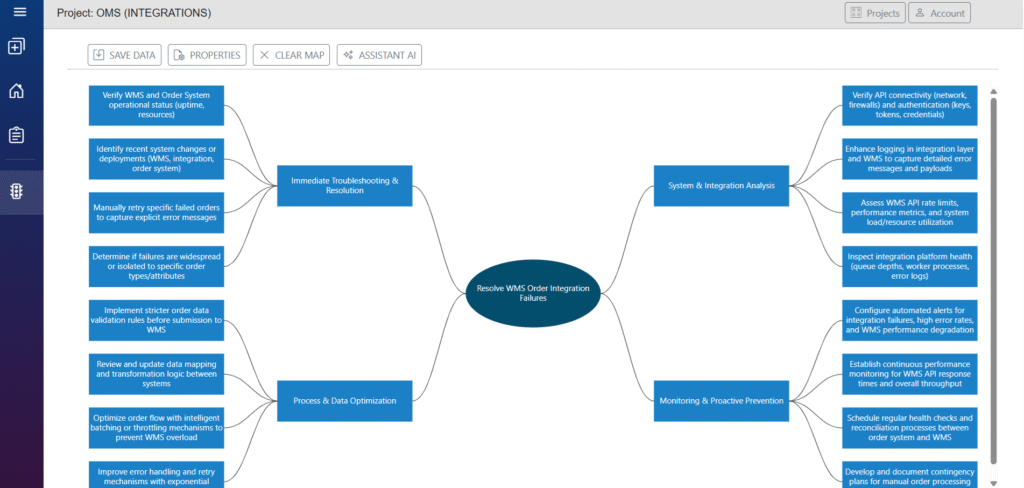
3. MindMap Canvas
The center of the page contains a mind map visualizer that displays:
Root problem node
Diagnostic steps
Identified failure points
Recommended fixes
Monitoring and alerting suggestions
Idempotency and export logic improvements
Warehouse-handling recommendations
The map is dynamically generated from the AI response and automatically formatted into hierarchical nodes.
Example MindMap Generated by AI
Nodes typically represent:
Diagnostics
Review logs
Validate ‘exported’ flag state
Verify warehouse API responses
Fixes
Implement idempotency keys
Improve ACK flow
Enhance retry logic
Warehouse Handling
Prevent duplicate pick tasks
Add duplicate order checks
Monitoring
Alerts for failed exports
Dashboard for export health
Intended Use Cases
Support engineers diagnosing integration problems
Developers performing RCA on repeated export failures
Technical analysts documenting systemic issues
Managers reviewing system stability trends
Benefits
Reduces manual analysis time
Standardizes RCA documentation
Provides visual, hierarchical clarity
Helps prevent recurring issues
Improves collaborative troubleshooting
⭐ Quick Start Guide
1. Open the MindMap Page
Navigate to the MindMap page in the Support System. You will see:
Action buttons (Save Data, Properties, Clear Map, Assistant AI)
A mind map canvas
2. Select Tickets for AI Analysis
- Click the AI button. This will open a form with AI call parameters.
- Browse the list of tickets.
- Click on each ticket you want to include in the analysis.
Selected tickets will be highlighted.
Tip:
Use multiple tickets if they describe the same issue or recurring symptoms.
The AI will combine them for a deeper analysis.
3. Send Selected Tickets to AI
Click Assistant AI.
The system prepares a request from the selected tickets.
The AI processes the data and creates a structured mind map.
This may take a few seconds.
4. View the MindMap
Once the AI response is ready, the mind map will appear on the canvas.
The map shows:
The root cause
Steps to investigate
Recommended fixes
Monitoring ideas
Warehouse or export-related insights (if applicable)
You can:
Move nodes
Expand/collapse branches
Explore the AI’s reasoning
5. Save the MindMap
Use the action buttons at the top:
SAVE DATA
Store the mind map for later use.- CLEAR MAP
Remove the current mindmap and start again.
6. Run AI Again (Optional)
If the output is not what you expected:
Select different tickets
Add or remove details
Run Assistant AI again to update the map
🎯 You’re ready!
You now know how to:
Select tickets
Run an AI request
Read the mindmap
Save