
Documentation for the support system
Ticket card
This guide explains how to use the Ticket Card interface for managing issues in the supported project. It provides an overview of all key features, including how to create, update, and review tickets, attach relevant information.
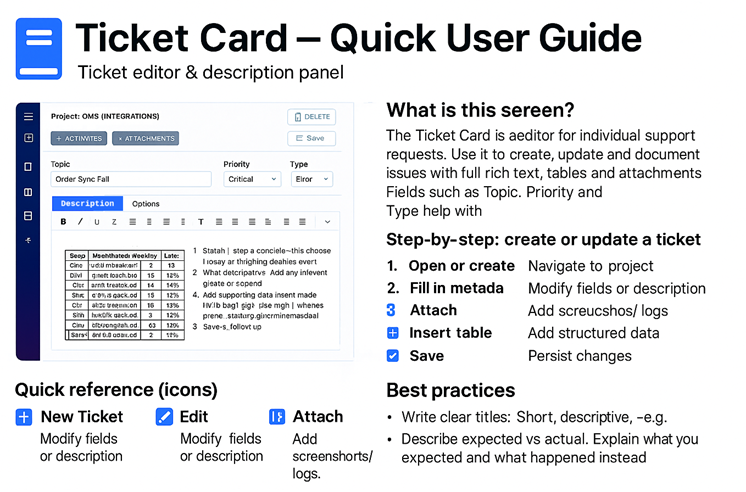
🖼️ Interface Overview
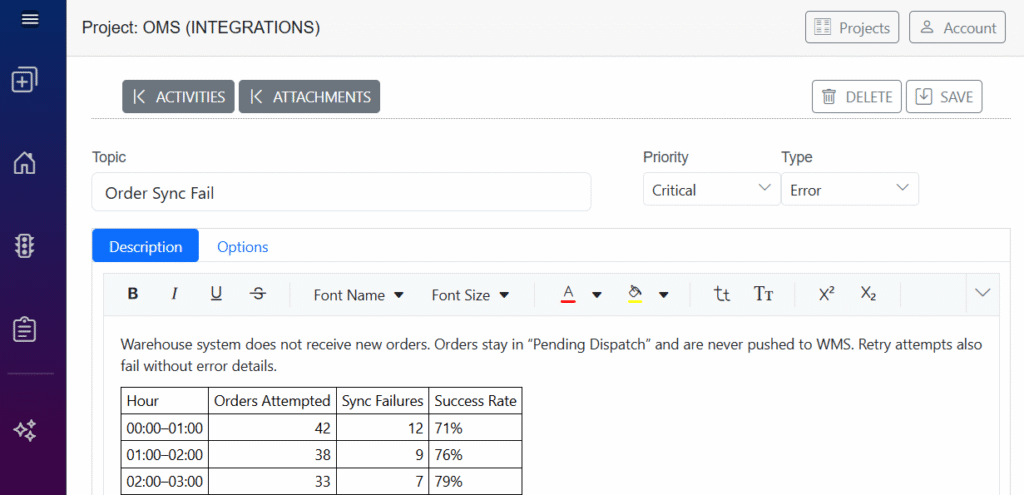
The Ticket Card screen (as shown in the image you provided) consists of four main areas:
Top Panel — project name, Save/Delete actions
Ticket Details — topic, priority, type
Editor Tabs — Description and Options
Rich Text Editor — where you enter details, tables, and notes
✍️ Description of Each Section
🔹 1. Top Panel
Displays the current Project (e.g., OMS – Integrations).
Buttons available:
🗑️ Delete – removes the ticket
💾 Save – saves all entered information
🧭 Project switcher – navigate to another project
🔹 2. Ticket Details
These fields define the metadata of the request:
Topic – short title summarizing the issue
Priority – determines urgency (Critical, High, Medium, Low)
Type – category (e.g., Error, Task, Request)
🔹 3. Editor Tabs
You can switch between:
Description – main editor for problem explanation
Options – additional settings (optional per system configuration)
🔹 4. Rich Text Editor
A full text editor where you can:
🔤 Format text (Bold, Italic, Underline)
↕ Adjust font size and paragraphs
🧾 Insert tables (as shown in your screenshot)
📎 Add links
🔢 Create lists
📐 Align content
📊 Add structured data for support analysis
This is where you describe the problem and attach logs or tables.
Step-by-Step Guide for Creating a Support Request
Step 1 — Open the Ticket Screen
➡️ Navigate to the desired Project
➡️ Click New Ticket or select an existing ticket to edit
Step 2 — Fill in Ticket Details
Topic → Write a clear, short summary
Priority → Choose urgency (e.g., Critical)
Type → Select category (e.g., Error)
Step 3 — Enter the Description
In the Description tab:
Write a clear explanation of the issue
Include:
🕒 When it happened
🧪 What was expected
❌ What went wrong
🔁 Steps to reproduce
Add supporting material:
📷 screenshots
📦 error logs
📊 tables (like the one in your screenshot)
Step 4 — Add a Table (Optional)
To add data like hourly statistics:
Click the Table icon ⬛⬛
Select table size
Enter values (Hours, Orders Attempted, Failures, Success Rate)
Format columns using the toolbar if needed
Step 5 — Review and Save
Before saving, verify:
✔ Topic is clear
✔ Description is complete
✔ Data is correctly formatted
✔ Priority and Type are correct
Click SAVE.
Best Practices
Keep titles short but meaningful
Always describe expected vs. actual behavior
Attach logs/screenshots when dealing with errors
Use tables for statistical or repetitive data
Set priority accurately — this helps your team triage faster
Update the ticket once new information appears
Example request description
✅ Short version (concise)
Description:
The system encountered an unexpected crash during normal operation. The application closed abruptly without saving progress. No user action appeared to trigger the issue. A crash dialog was displayed and the session was terminated. Further investigation is required to identify the root cause and prevent recurrence.
✅ Standard version (for typical support cases)
Description:
The application experienced an unexpected crash while processing a standard user action. The interface froze for several seconds and then closed automatically. A crash message was displayed indicating that the system encountered a critical error and had to terminate the session. No error code or diagnostic details were visible to the user. The issue appears to occur intermittently and does not follow a predictable pattern. Logs and screenshots have been attached for analysis.
✅ Detailed version (recommended for high-priority incidents)
Description:
The system suffered an unexpected crash during normal workflow. At approximately [time], the UI became unresponsive, and after a short delay the application terminated automatically. A crash dialog appeared with a generic error message stating that the system encountered an unrecoverable fault.
The crash occurred without any unusual input from the user. No error code was displayed, and the system did not provide recovery options. As a result, all unsaved work was lost.
Initial findings:
The issue is intermittent and difficult to reproduce reliably.
No clear trigger identified at the time of the incident.
The user was performing standard navigation actions prior to the crash.
Screenshot of the crash message has been attached for reference.
Further investigation is required to review system logs, client-side errors, and server responses around the crash timeframe.
✅ Technical version (for developers or infrastructure teams)
Description:
An unexpected application crash occurred during active use. The UI became unresponsive and the client process terminated unexpectedly. The system displayed a critical error dialog before shutting down. No diagnostic trace or stack information was provided to the user.
The crash appears non-deterministic. It does not correlate with specific user operations. A screenshot of the crash dialog has been attached. Further analysis of backend logs, client crash dumps, and browser/console traces is required to identify the underlying fault.